September 2010
M T W T F S S
« Aug    
 12345
6789101112
13141516171819
20212223242526
27282930  

How to create a faux HDR image on Photoshop with one picture.

Before editing

Image before, place mouse over image to see Faux HDR image

Most everyone has heard of High Dynamic Range (HDR) images, created by combining several pictures allowing us to view a greater dynamic range of the lightest and darkest areas of that image. Creating an actual HDR image starts with creating the various exposures at the time of taking the picture then combining them with a photo editing software like Photoshop. But it is possible to create a Faux HDR image with only one picture using a photo editing program like Photoshop!

At least I’ll give it a try and create my version of a faux (fake) HDR image with only one image. The picture on the left is the original image in small scale, if you place your mouse over the image, you’ll see the final version. Click the image and see it in full size. Is it an HDR image? Not really, but I think it is HDRish?

This is how I created it on PS3. First, I opened up the original image on PS3 and created two additional layer copies of it. If you see the image on step one, I indicated the image and the two additional layers on the lower right hand. At this point I have not made any changes to the images, this was only the setup to what I did in step two.

Continue reading How to create a faux HDR image on Photoshop with one picture.

Working with Layers and Magic Wand tool in Photoshop.

1937 Mercedes-Benz 540K bodyscape

1937 Mercedes-Benz 540K bodyscape

Look what Santa brought me for Christmas! A brand new car! ;-) Actually, I have been watching Christmas movies all day and began to play around with Photoshop and some of my photos. I completed this one in less than 10 minutes! Even I was surprised at how easy it was. So I decided to share how I created it. Many of you may already know how, but since there are many new people getting into photography I think this could be a good lesson you can try at home with any of your pictures.

First, be sure to have a photo editing program. Photoshop is fine, but many others will work too, as long as it allows layers. There are many free or inexpensive photo editing software programs available on the Internet so get one first before proceeding. Once you have the program installed, open one of your photos, preferably one that has a solid background color like white, green or blue. Avoid photos with many subjects or items in the foreground. In my case I used the image in Step 1. One very important tip, use a large sized/resolution photo in its original size, I’ll let you know why at the end.

Step 1

Step 1

In this first step you can make any small adjustments you need to do such as color correction, exposure, etc. Then use the Magic Wand Tool as indicated on Step 2 to highlight the area you plan to remove/replace. In my case I wanted to replace the white background with a blue sky. I used the Magic Wand Tool to select the white area and paid special attention to small details such as the windshield of the car, I wanted to make sure it too was replaced so the blue sky would show through the windshield. When the area I wanted was selected, I then hit the delete button and the area was removed and a solid white background emerged. Depending on how you have your program set up, it could also be a void area, the white on my picture simply means there isn’t anything there. Leaving this window open with the selection in tact, I then went to Step 3.

Step 2

Step 2

step3

Step 3

I found a photo with a blue sky and clouds, Step 3, since I have a large collection of images in my computer, finding the correct background was easy, but if I didn’t have one then a quick trip outside with my camera would have created what I wanted! With the image of the sky open, I selected the entire area, making sure it is the same width size as my original car picture. This is important, otherwise your images will not

Step 4

Step 4

overlap easily. I used the “copy” function to add the sky image to my clipboard.

Then on Step 4, I returned to my original image, with the area I had previously selected still in tact, and used the “Paste into” function under the Edit drop down menu. This placed the sky image I had copied into my image. It will normally place it in the middle of my original picture, since I need the sky further down and reach the car and sand dunes, Step 5, I use the Move Tool, from the upper left pane, to position the sky image where I need it.

Step 5

Step 5

Finally, Step 6, I cropped the picture so I could remove the white blank area from the top and saved the entire file. Be sure to save often as you go through the steps so you don’t lose any of your work. If you are using Photoshop, save the file as a .psd file, the Photoshop default extension and include the layers, don’t “flatten” the image. If using another program, try to find an option where it saves the layers separately but in the same file. Then while the picture is still open use the “Save for web & devices” option under the File drop down menu. This will be the image you can save as a .jpg file and use to display online or email friends. In my case the final image at the top of this post was created this way.

Step 6

Step 6

And don’t forget, you can make minor changes on the image like removing blemishes or enhancing the color before or after the image is complete. In my case i did most of the image editing at the start of the process. But the resizing for web or email display should be done at the end. I hope the explanation was helpful or at least a little entertaining! Either way I’m glad I was able to illustrate how I create some of my images.

If you feel this post was helpful and useful, please consider donating to the blog via paypal, it helps me continue to post images and information about photography. You can do it via the paypal button on the upper right side of this page. If you are not able to, don’t worry and continue to enjoy the site!


Black and white digital photography the outlet way!

Christi - Black & White digital photo

Christi - Black & White digital photo

Film cameras seem like such a long time ago for most of us, but one thing I miss is shooting with black and white film. I love the tones, the detail and the overall look of it. Luckily with digital cameras and imaging software, we can continue to enjoy black and white photos without having to pull out our old cameras and searching for expensive, if available, black and white film!

There are two ways you can choose to shoot b&w images with your digital camera. One is to change the settings on your camera to shoot in b&w only. I know some cameras have a feature that let you choose the tone for the images, so you get different styles of b&w. This option is good for an instant “out of the camera” b&w image. The second way, would be to shoot your images in regular color settings, (I recommend you shoot in RAW/TIFF format) then use a program like Photoshop to convert your image to b&w. Try doing it both ways to see which one you like better. The image of Christi on the left was taken with a Nikon D70 (6 mega pixel, by the way), and I was shooting in RAW format, well actually NEF since that is the codec (Nikon’s version of a RAW file).

Christi in color

Christi in color

With Christi I shot about 95% of it in full color RAW, then for this photo I used Photoshop (I’m currently using Photoshop CS3) to convert it to B&W and made some other small tweaks. I chose this image to convert to B&W because of the shadows. Her hand, neck and face had some great tones that I thought would look great in this version. The color version on the right looked great, but for some reason I really enjoyed it in B&W. I know, I know, many of you probably prefer the color version, but I guess its the way the top version emphasizes the details better. In the bottom version did you even notice the ear ring? Look at the B&W version, then notice how the shadows stand out and there is a type of mystic to the image. At least for me there is! Well, I hope you at least enjoyed the images, if not the subject!


Why understanding how depth of field works can enhance your photos.

White tight pants

Strike a pose?

Red tank top

Red tank top

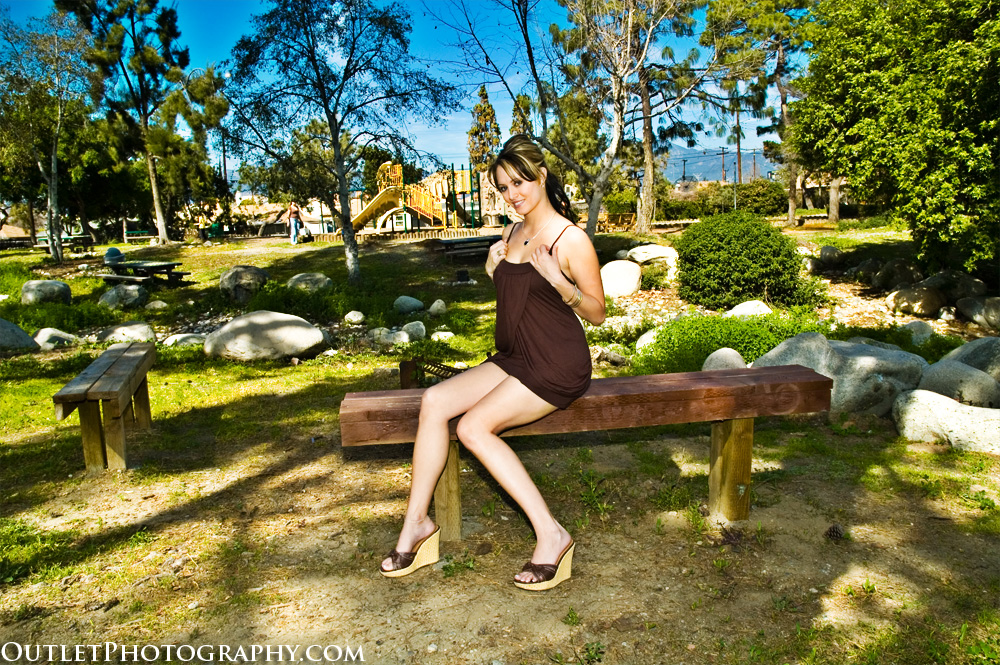
This morning before heading out to some Thanksgiving dinners, I spent some time working on a request. A girl I photographed a while back contacted me wanting more copies of the photos I took of her. At the time we met up at a park I like to use for outdoor shooting, her friend recommended her to me and I agreed to shoot some basic images for her personal use. I gave her a few photos at the time, but now she needs some for a beauty pagent of some sort.

In regards to the photos, I noticed that when I took these images, I really didn’t have a plan, so many of the shots are not to my liking. For example, this photo of her standing with that pose, not my favorite, but its what she wanted to do. Then its the depth of field (DOF), I should have moved closer/zoomed in to blur out the background more, or opened up my aperture more, after all I was using a Nikon 80-200AF 2.8. I guess this happens when I don’t plan the shoots, sometimes I don’t get what I want. The second photo, as you can see, I zoomed in and was able to blur a lot more. One other aspect of the photo I don’t like is the bright sun spots in the background, at the time I took the pictures, I knew they would be a problem. Later as I worked on the photos at home, I realized it was more of a distraction than I thought they would be, but there is little I could do about it know. Oh well. At least this was just a fun shoot only!

Well, turkey time! Got to go!

Working with a real first time model...its an adventure!

Photographers are always stating how they have “amateur” models, but then when you look at the photos, the models are usually internet models or semi-professionals. For the most part, with the exception of a few here and there, I enjoy working with everyday woman. Maybe its the excitement they bring to a shoot or the sexy nervousness when she first starts to pose for me, whichever it is, it works for me!

A woman new to modeling transforms within a few hours during a shoot. A good example is the woman below. First, I noticed she liked to play with the water, so I photographed her playing and having fun. Later, I was complimenting her about her figure and I sensed she was enjoying the attention. She began to loosen up, hence the second photo when she opened up her wrap to reveal her body. She said she felt “sexy” and “free” at the beach. Maybe the open wrap pose was her way of teasing me or the camera, whichever it was, I liked it! The last photo was later in the day after she tried a few more sexy outfits. I figured she was ready to be more daring. I asked if she wanted to pose in this tight red dress and she said yes right away. As you can see, its meant to be worn without underwear. She was completely fine wearing it, even though it was the most revealing outfit she ever wore, at least that’s what she told me!

If you are a photographer working with a new model, be prepared. She is relying on you to guide her. So take your time but be sure to lead her to the poses and outfits that accentuate her beauty. When she sees the great photos you took of her, she will want to work with you again! And believe me, she doesn’t care if you are using a Canon, Nikon, Olympus, or have the latest and fastest lens. She wants to feel comfortable and beautiful as you photograph her, so make sure she feels that way and capture it!

Page 1 of 3123
Improve the web with Nofollow Reciprocity.